
Overview
Every email mailbox has a storage limit. When a mailbox approaches or reaches this limit, the email service may no longer work correctly.
A full mailbox can prevent new messages from arriving, cause emails to be returned to the sender, and affect access to your mailbox. Keeping your mailbox below its storage limit helps prevent disruption and ensures that your email continues to work reliably.

Example of an error that may appear when the account has exceeded its storage quota.
⚠️ Common Signs of a Full Mailbox
If your mailbox is approaching its storage limit, you may notice one or more of the following:
- Emails are not arriving
- Messages are returned to the sender
- You see mailbox quota exceeded errors
- Outlook stops updating correctly
- You experience problems sending emails
How to Check Your Mailbox Usage
You can check your mailbox storage usage by logging in to Webmail.
The storage indicator is displayed towards the bottom of the Webmail screen. This shows the percentage of available mailbox storage currently being used.
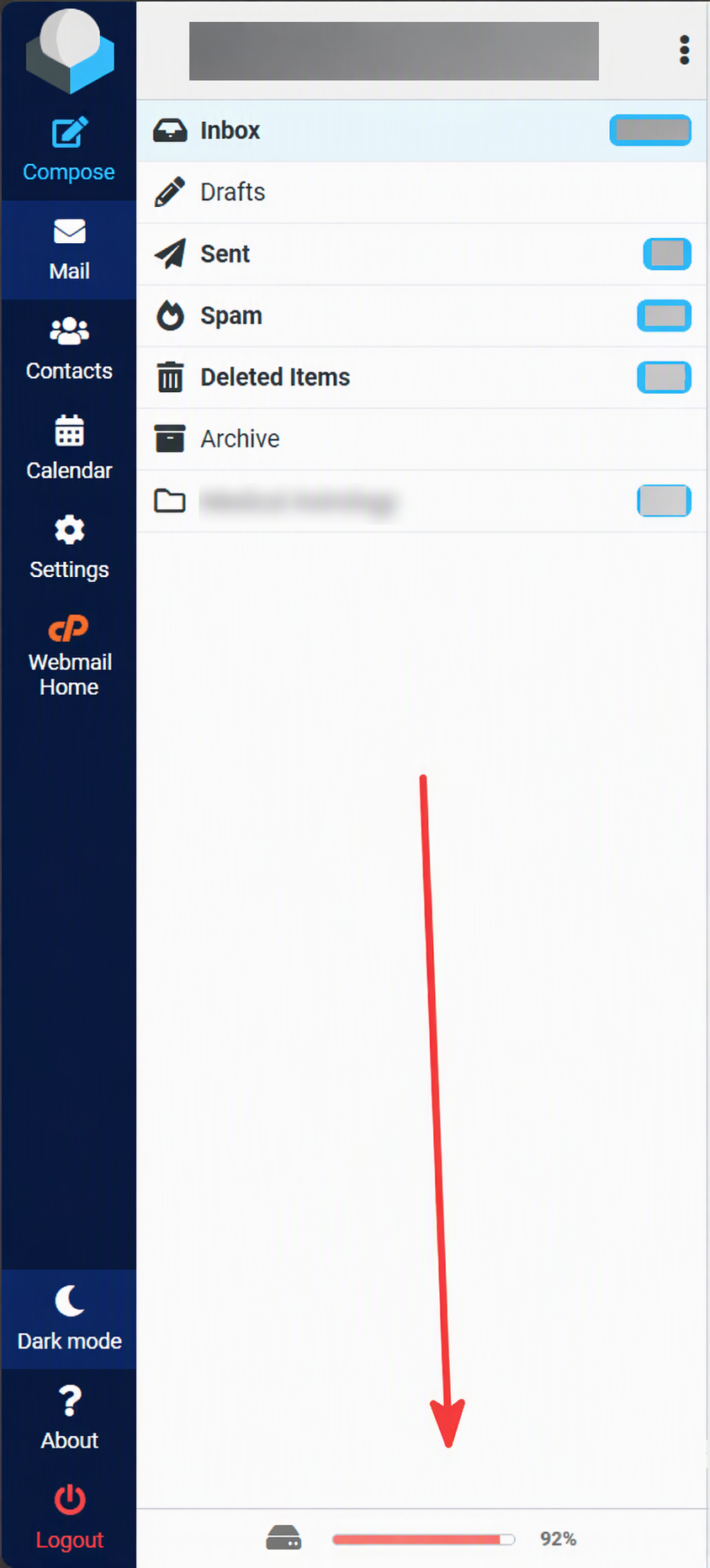
In this example, the mailbox has used 92% of its available storage.
If the storage indicator is approaching 100%, we recommend removing unwanted emails as soon as possible.
???? Before You Start
The quickest way to recover mailbox storage is usually to empty your Deleted Items/Trash and Spam folders, as these often contain large numbers of messages that continue to use mailbox storage.
✅ Quick Ways to Free Up Space
- Empty Deleted Items or Trash
- Clear Spam and Junk folders
- Delete emails containing large attachments
- Remove older messages from Sent Items
- Use the Email Disk Usage tool in cPanel
Freeing Up Space Using Email Disk Usage
cPanel includes an Email Disk Usage tool that allows you to review your email folders and permanently remove older messages.
Step 1: Open Email Disk Usage
Log in to cPanel and scroll to the Email section. Select Email Disk Usage.

Select Email Disk Usage from the Email section in cPanel.
Step 2: Choose the Email Account
Use the Account drop-down menu to select the email address you want to manage.
Make sure you select the correct email account before deleting any messages.

Choose the mailbox you want to review from the Account menu.
Step 3: Find the Folder You Want to Clear
Once the email account has loaded, you will see a list of its folders. These may include:
- Inbox
- Sent
- Spam or Junk
- Deleted Items or Trash
- Other folders created within the mailbox
Locate the folder containing the emails you want to remove and select Manage.
Step 4: Choose Which Messages to Delete
Under Messages to delete, use the drop-down menu to choose the type or age of messages you want to remove.
The available options may vary. For example, you may be able to delete messages that are one year old or more.
After choosing an option, select Delete Permanently.

Select the messages you want to remove and then select Delete Permanently.
Important: Emails removed using Delete Permanently cannot be recovered. Check that you have selected the correct mailbox, folder and deletion option before continuing.
Remember to Empty Deleted Items
Deleting an email from your Inbox does not always free up storage immediately. The message may be moved to the Deleted Items or Trash folder, where it will continue to use mailbox storage.
To properly free up space:
- Remove emails that are no longer required.
- Check the Deleted Items or Trash folder.
- Permanently delete unwanted messages from that folder.
- Check the Spam or Junk folder for messages that can be removed.
You can also use the Email Disk Usage tool to manage and permanently clear these folders.
Remove Emails with Large Attachments
Emails containing attachments can use a significant amount of storage. Images, documents, presentations and other large files can cause mailbox usage to increase quickly.
Before deleting an important email, save any attachments you need to keep to your computer or another secure storage location.
You can then delete the email and permanently remove it from Deleted Items or Trash.
Consider Archiving Older Emails
If you need to retain older emails, you may be able to archive them using your email application.
Archiving can move older messages out of the mailbox while allowing you to keep a separate copy. Before archiving or removing messages, make sure the archived emails are stored correctly and can be accessed when required.
Consider Additional Mailbox Storage
If your mailbox regularly approaches its storage limit, even after removing unnecessary messages, additional mailbox storage may be a more suitable long-term option.
Please contact our support team to discuss the storage options available for your account.
Mailbox Storage Health Check
| Mailbox Usage | Status |
|---|---|
| 0% - 80% | ✅ Healthy |
| 80% - 95% | ⚠️ Running Low |
| 95% - 100% | ❌ Action Required |
Preventing Future Mailbox Storage Problems
We recommend taking the following steps regularly:
- Check the storage indicator in Webmail.
- Remove emails that are no longer needed.
- Empty Deleted Items or Trash after deleting emails.
- Review and clear Spam or Junk folders.
- Save required attachments elsewhere before removing large emails.
- Archive older messages where appropriate.
- Take action before the mailbox reaches 100% usage.
- Contact our support team if you regularly run out of storage.
✔ Quick Checklist
- Check mailbox usage in Webmail regularly
- Delete emails you no longer need
- Empty Deleted Items or Trash folders
- Review Spam and Junk folders
- Remove unnecessary large attachments
- Archive older emails where appropriate
- Take action before storage reaches 100%
- Consider additional storage if you frequently run out of space
Need Help?
If your mailbox has reached its storage limit, or you're unsure which emails can be safely removed, our support team can help.
Open a support ticket and we'll be happy to assist.